The release of DD OS 8.0 (let’s call it that for short), late last month, was major release that introduced some significant security, cloud and manageability enhancements. I will unpack these in a little more detail in the following few posts. With this release however, Dell also introduced two brand new high-end Data Domain appliances based on the next-gen PowerEdge 16th Gen server platform.
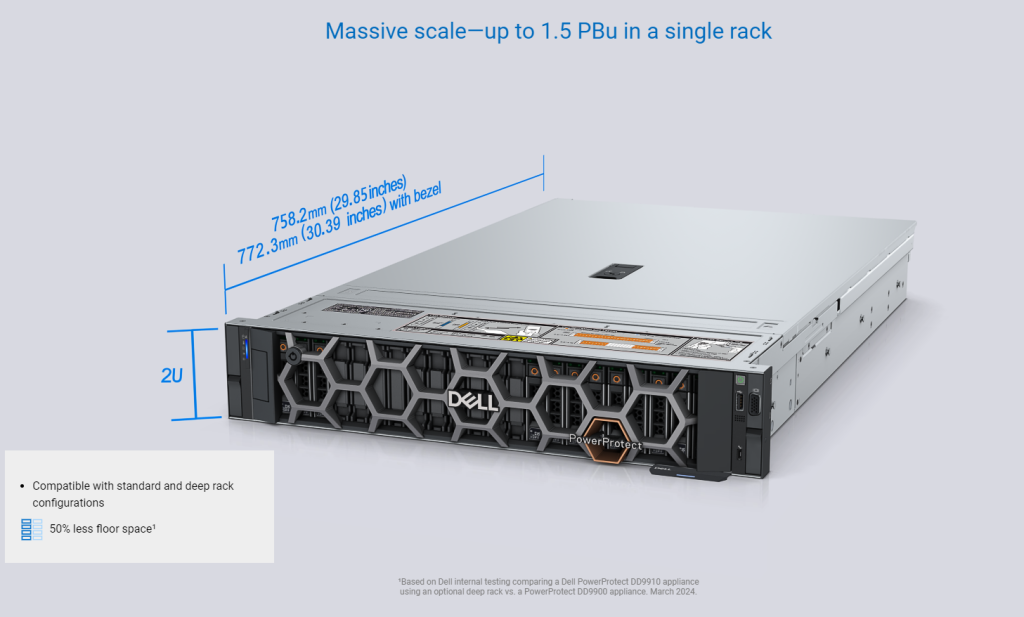
The DD9910 and DD9410 are appliances positioned for larger Enterprises and commercial customers. The DD9410 starts at an entry level capacity of 192TBu and scales up to 768TBu when the appliance is at its max configuration, while the DD9910 starts at an entry level capacity of 576TBu and scales up to 1.5PBu respectively. These are direct replacements and enhancements to their predecessors, the DD9900 and DD9400.
PowerProtect Data Domain 9910 Front View and Dimensions
I’ll attach a link to the relevant datasheets at the end of this short post, but I thought it would be nice to take a little virtual tour of what the new platforms look like in the flesh. Everybody likes to get their hands on the hardware, so hopefully this will be the next best thing…..
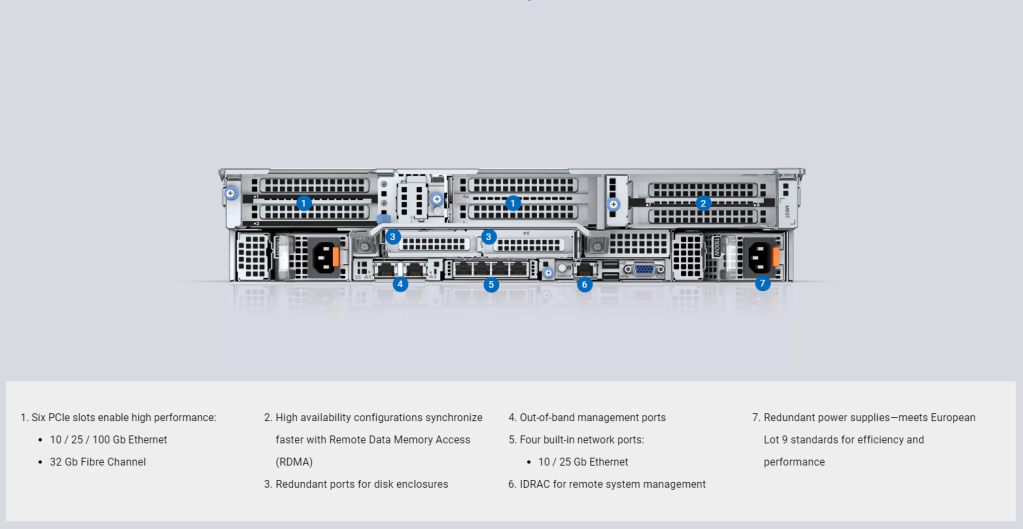
PowerProtect Data Domain 9910 Slot/Port layout Rear View.
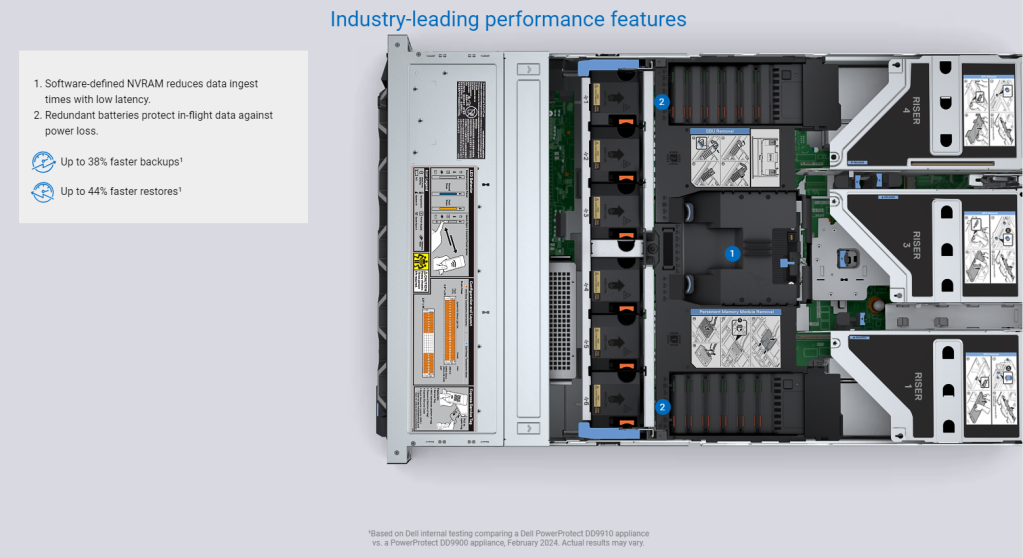
PowerProtect Data Domain 99XX internal view NVRAM and Battery Layout.
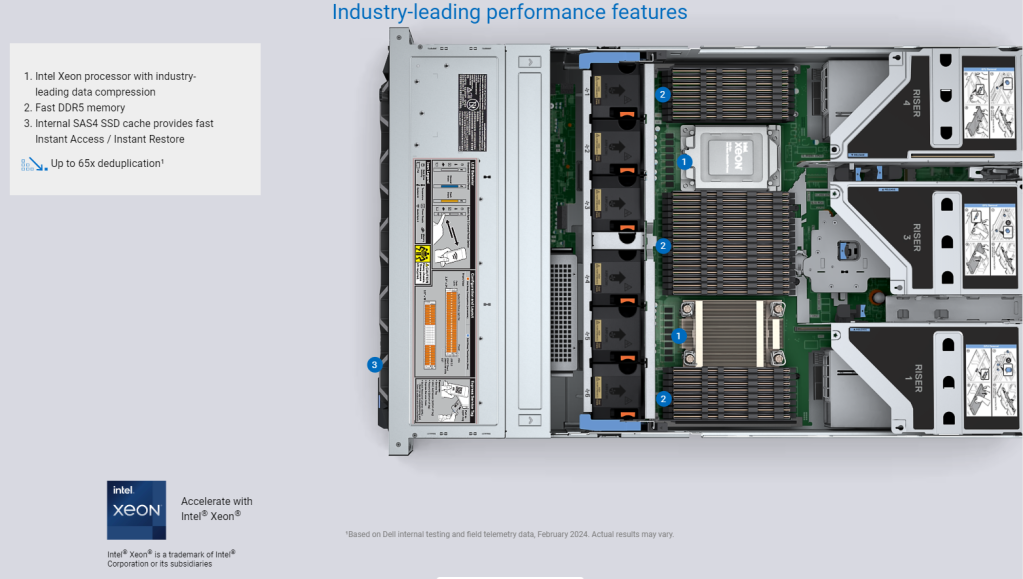
PowerProtect Data Domain 99xx internal view CPU/Memory.
As mentioned above, I will follow up over the next while with a a bit of a deeper dive into the both the software and hardware features of this release. In the meantime I have attached some handy links to official documentation/blogs etc. Note: To access these you may need a Dell partner/customer support logon.
The views expressed on this site are strictly my own and do not necessarily reflect the opinions or views of Dell Technologies. Please always check official documentation to verify technical information.
Just before the New Year, PowerProtect DDVE on AWS 7.13 dropped. With it came official documented support for AWS S3 Intelligent Tiering. Indeed manual or direct tiering is supported also using S3 Lifecycle Management, but Intelligent Tiering is recommended as it, well just works, and with no nasty retrieval costs associated with it.
Here is the link to where it is documented in the release notes: ( Note you will need a logon)
Here is the relevant paragraph, scroll down to page 12:
So what does this mean?
Well, in short we save on backup costs from DDVE to S3. So now you get all the goodness of the native Dell deduplication features of DDOS and DDVE, coupled with all the cost saving optimisations of S3, that have been introduced by Amazon over the last couple of years:
For a small monthly object monitoring and automation charge, S3 will monitor access patterns and automatically move our backup objects to lower cost access tiers, with no retrieval performance or cost penalties. Bottom line, a no-brainer.
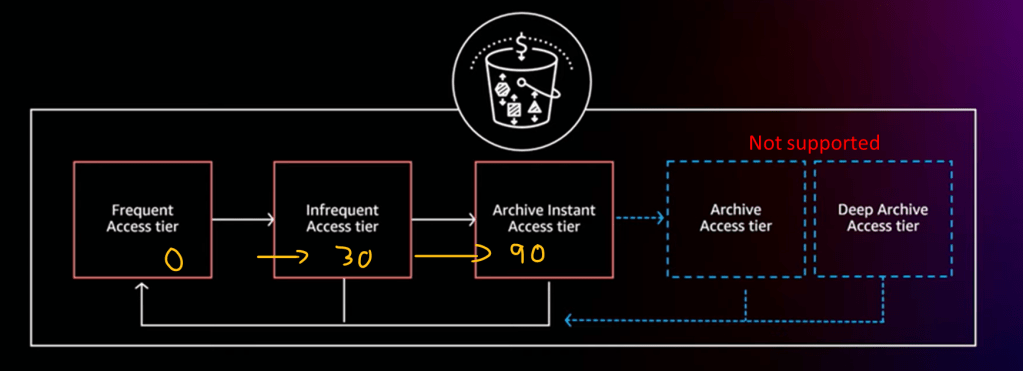
S3 automatically stores objects in three access tiers:
Tier 1: Frequent Access Tier
Tier 2: Infrequent Access Tier – (After 30 days of no access, 40% lower cost Tier)
Tier 3: Archive Instant Access Tier – (After 90 days of no access, 68% lower cost tier)
There are another 2 tiers (Archive Access Tier & Deep Archive Access Tier), that are positioned for data that does not require instant retrieval. These are currently untested/unsupported so please don’t use given the unpredictable times etc. You need to explicitly turn this feature on/opt-in in any regard, so no fear of misconfiguration.
Configuration, This is really straightforward.
Usually I would do an accompanying video demo, but this is relatively short and easy, so screenshots for now. Next month when we pass the 30 days, I will follow up with a video blog overviewing the re-hydration of our backup from the infrequent access tier.
1. Create your bucket as normal
This is very straightforward, just make sure your bucket name is unique, usually unless I had some specific requirement I would accept all the defaults.
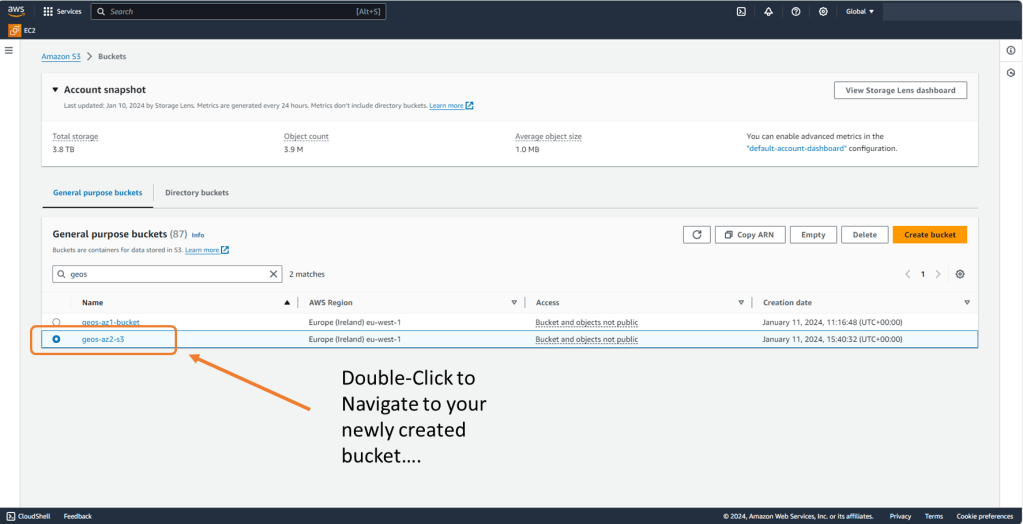
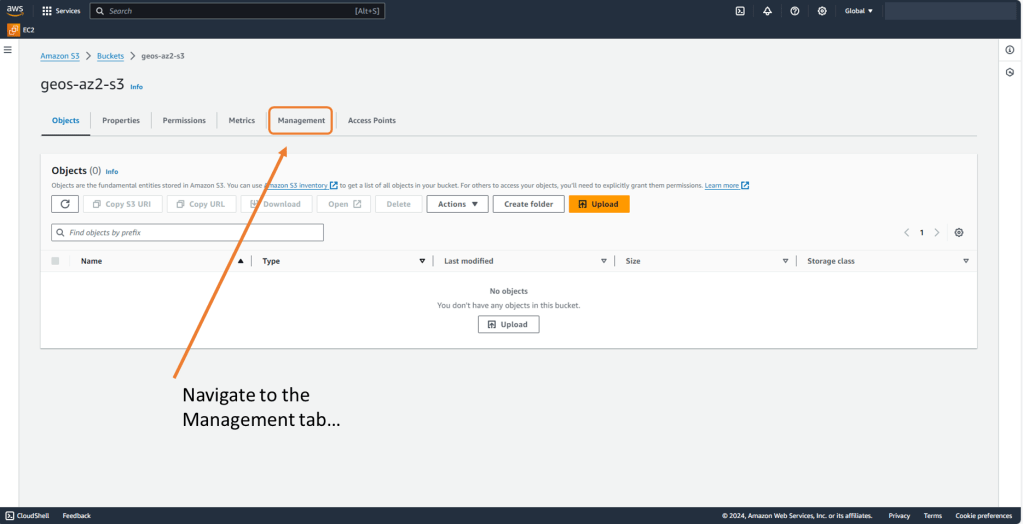
2. Create Lifecycle Policy for the new bucket
A Lifecycle Policy is used to apply the transition to Intelligent Tiering. DDVE requires that Standard Class S3 is used by DDVE. The lifecycle policy allows us to deploy with a Standard Class and transition over time to another S3 storage class, either by user policy (manual) or by intelligent tiering (automated).
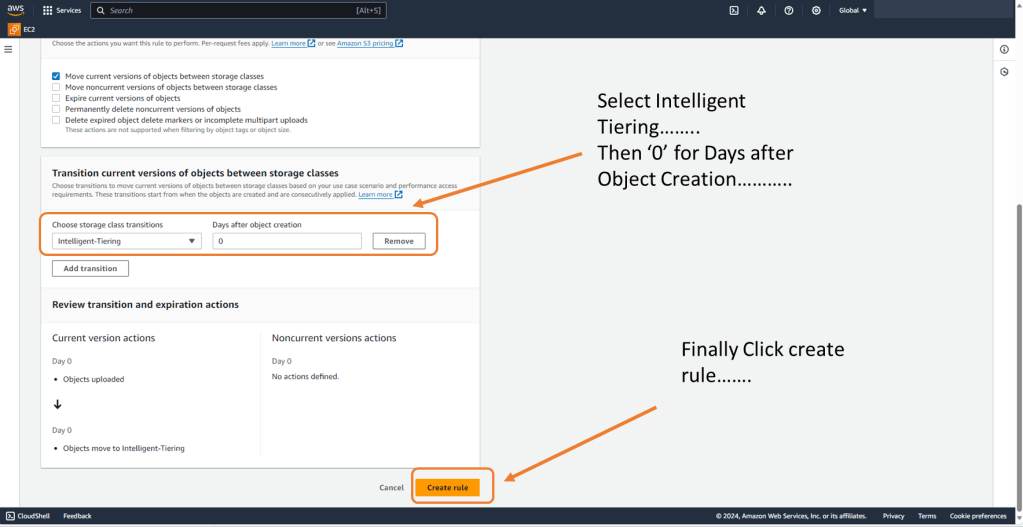
3. Configure Lifecycle rule
So as mentioned, DDVE will expect to see an S3 bucket configured with a Standard class. We adhere to this requirement but we set the lifecycle rule to transition everything to Intelligent Tiering, zero days after object creation. DDVE writes to a standard class as expected, but S3 via the lifecycle policy immediately transitions objects to the Intelligent Tiering class, so the clock starts to 30 days immediately.
We can also apply filters to the policy to push only certain objects in the Intelligent Tier and other configure other lifecycle options. For now though we will keep it simple.
Scroll down…. I couldn’t screen shot the full screen!
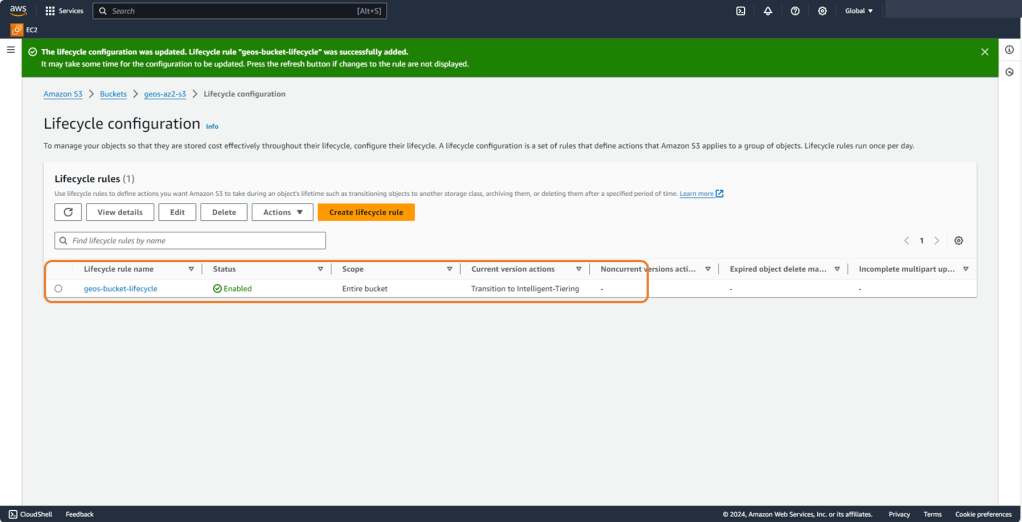
4. Verify your configuration
Lastly have a look at your new lifecycle policy and verify its configuration. Not a whole lot to see or verify as it really is straightforward.
Next Up.
Next month (after 30 days) we will revisit our environment and re-hydrate some EKS kubernetes workload from a PPDM policy. All going well she shouldn’t notice any difference in speed or performance. Overtime we should, if we are careful how we construct our PPDM polices, notice an improvement in our pocket!
DISCLAIMER The views expressed on this site are strictly my own and do not necessarily reflect the opinions or views of Dell Technologies. Please always check official documentation to verify technical information.
In part 1 and 2 of this series we provided an overview of how we would stand up a basic EKS Kubernetes cluster, configure all the associated IAM and security policies, and finally the installation of the AWS native CSI driver for the backend EBS storage. To get up and running and do something actually functional, we will need to:
Deploy a simple application on our EKS cluster with dynamically provisioned persistent storage.
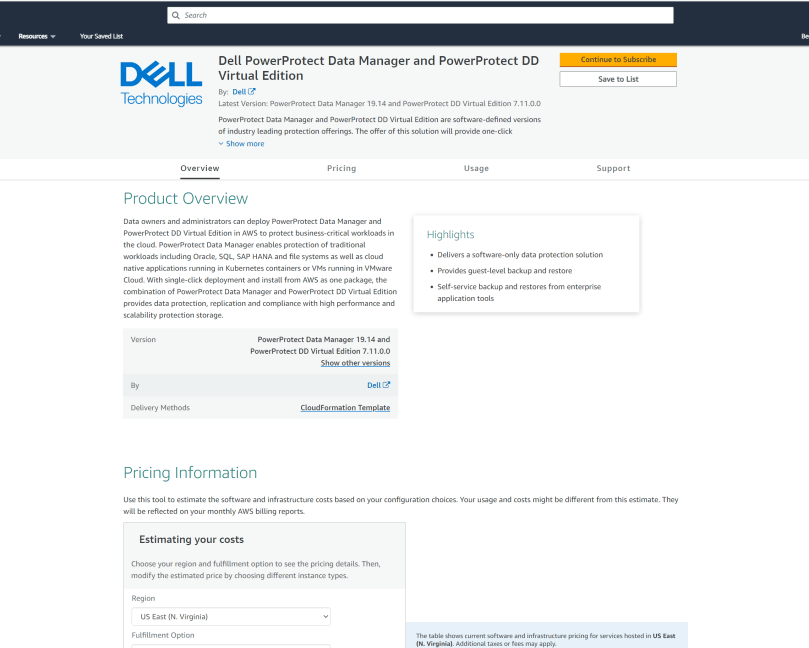
Deploy Dell PowerProtect Data Manager and DDVE direct from the Amazon Market Place. Note: I have dealt with this exhaustively in previous posts here, so I will skirt through quickly enough in the video demo.
Configure the integration between PPDM and the AWS Managed EKS control plane so that I can discover the Kubernetes namespaces I wish to protect.
Configure a protection policy for backup to our DDVE storage repository, AWS S3.
A picture tells a thousand words:
Right so lets get started, we will cover steps 1 through 3 in this post and leave 4 for the final post in the series.
Just before we begin, we skipped over this step in the previous post. I got caught, yet again with an authentication type error. Make sure you have configured an IAM OIDC provider for your cluster, or else your POD’s won’t initialise properly. The documentation is here.
1. Deploy a simple application with dynamically provisioned persistent storage.
So there is a great guide/demo as to how to do this on the AWS documentation site and the AWS github for EBS CSI. I am using the simple pod from this site in my example, but amending it slightly to create a new namespace space ‘geos-ppdm’, and running through the configuration in a slightly different manner.
We already have our Storage Class applied in the last video and patched to make it the default. We just need two yaml files to stand up our simple application. The first our Persistent Volume Claim (PVC), which will point to already configured Storage Class: ( Highlighted Orange below)
Next we will run the YAML to deploy our sample pod, named Pod-1. This is an incredibly sophisticated application that outputs to the terminal the time and date!! It serves a purpose…
Before we apply the yaml files to our environment we just want to double check that our storage class is indeed up and running, otherwise our deployment will fail.
Create a new namespace for the application, this will be handy when we integrate with PPDM.
kubectl create namespace geos-ppdm-namespace
Copy the YAML files to your working directory ( Copy and Paste or upload to Cloudshell as in my video)
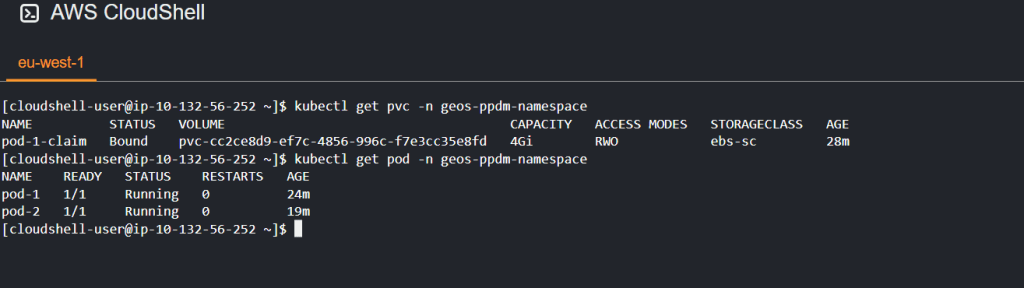
check your persistent volume claim is in a bound state and your pod is up and running
Deploy and additional pod as per the diagram above. A couple of choices here: You could get lucky like me, as my second pod was scheduled to the same node via the scheduler, and came up successfully, I have 2 nodes, it was a 50/50 bet. In general though it will probably fail as the storage access method is RWO. Might be easier to create another PVC! Definitely use multiple PVC’s in the real world.
Check my applications are doing stuff
In the end of the day we do want to push some data into DDVE. Change the default namespace to geos-ppdm-namespace and then run exec commands inside the container to expose the data being written to data/out.txt
If working correctly you should see recurrent date/time/year output. Pretty boring ! That is step completed and we know that our pod can mount storage on a persistent gp3 backed EBS volume.
Step 2: Deploy PPDM and DDVE direct from the marketplace.
As mentioned I have blogged about this in detail already, covering all the backend security groups, ACL’s, S3 endpoints, VPC setup etc. So I won’t hash through that in detail again. For the purposes of this demo, it will be very straightforward. One nice feature is that we can use a single Cloudformation template to deploy both the PPDM and DDVE instances. Moreover, the automation will also preconfigure the filesystem on DDVE pointing to our S3 Object store and configure the connectivity between PPDM and DDVE. We will showcase this in the video.
Step 3: Gather required information for cluster registration
The next logical step is to register our EKS cluster, with our namespace, application and pod data with PPDM. once that discovery process has happened then we can invoke policies and the inbuilt workflows to backup/restore/protect out kubernetes environment. We will do that via the PPDM GUI, but first we need to install some services on our EKS cluster and capture some identity data and certificate info.
Download the RBAC Folder from your PPDM device and extract the contents to your local machine.
Upload both YAML files ppdm-discovery.yaml and ppdm-controller-rbac.yaml to your kubectl working directory. I’m of course using CloudShell, but you could be using anything of your choice.
Setup the PPDM discovery and controller account and RBAC permissions
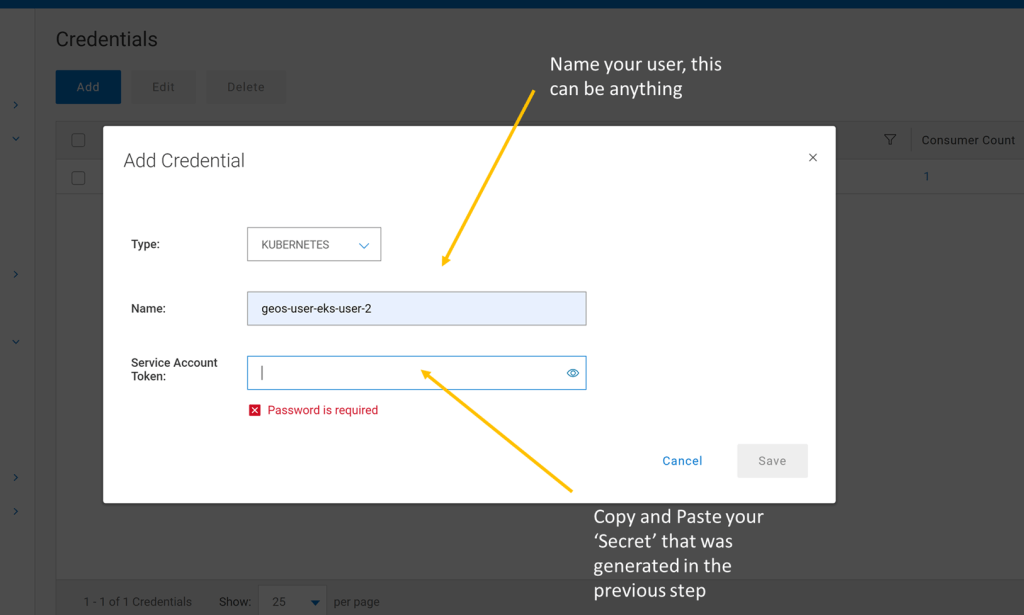
Retrieve the base64-decoded service account token from the secret you just created. Copy to notepad for use when creating our user credentials in PPDM.
For EKS deployments you will need to use the cluster root CA when registering as an asset source. Grab the certificate using the following command. Copy to notepad
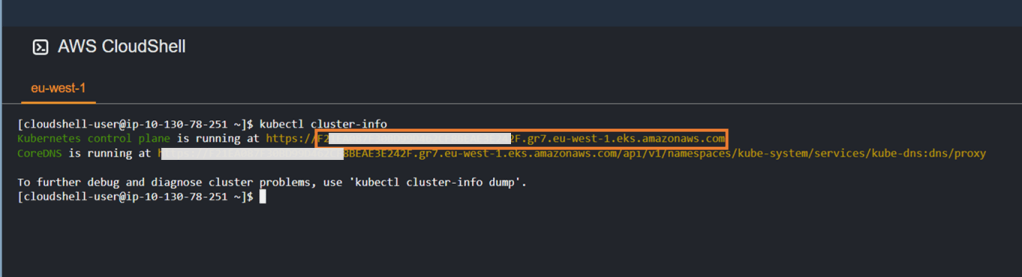
Retrieve your cluster API endpoint info using the ‘kubectl cluster-info’ command. Redact the forwarding https:// and copy the address to notepad.
By the point we should have the following information to hand:
PPDM service account secret.
EKS cluster root CA.
Cluster control plane address.
EKS Cluster name.
We will use this information in the next step to register our EKS cluster with PPDM.
Step 4: Integrate PPDM with EKS
Using the information gathered in the previous step, then proceed as follows ( This is covered in the video also).
Create Credentials and User
Add Asset Source
Add Root Certificate in Advanced Options
Verify and Save
Run Discovery on Kubernetes Asset Source
Navigate to Assets and View Inventory
Video Demo
Attached video demonstration of the above. Stay tuned for the part 4 of this series, where we will configure and demo some protection policies for our EKS kubernetes cluster.
DISCLAIMER The views expressed on this site are strictly my own and do not necessarily reflect the opinions or views of Dell Technologies. Please always check official documentation to verify technical information.
In the previous post we set up a very basic EKS environment with 2 EC2 worker nodes. Before we deploy a real application on this cluster and back it up using PPDM and DDVE, we will need to install the Amazon EBS CSI Driver on the cluster and use it leverage Kubernetes Volume Snapshots and gp3 backed EBS storage.
Slight change, in the format of this post. Video demo will be first up. Use the commentary in the blog to follow along.
Why do I need a CSI driver?
In our environment we are using native AWS EBS as storage for our pods, containers and workload etc. In brief a CSI is a specification that allows a Kubernetes system to implement a standardised interface to interact with a back end storage system, such as EBS. The main purpose of CSI is storage abstraction, in other words it allows Kubernetes to work with any storage device/provider for which an interface driver is available, such as Dell and AWS. Technically, they reside outside the core Kubernetes code, and rather than use in-tree plug-ins to the base code, they use API’s to enable third party vendor hardware to work ‘with’ a Kubernetes deployment versus ‘In’ a Kubernetes deployment.
The emergence of CSI was a game changer in terms of rapidly getting storage enhancements into kubernetes, driven by API versus having to go through the arduous task of integrating ‘in-tree’. This is a deep conversation in its own right ( deserving of its own blog post), but for the purpose of this blog let’s just say we need the AWS EBS CSI Driver installed in our cluster to allow Amazon EKS to manage the lifecycle the attached EBS volumes, and provide key features such as storage persistence, volume management, PVC’s and snapshots.
Deploying the CSI Driver
The EBS CSI driver is deployed as a set of Kubernetes Pods. These pods must have the permissions to perform API operations, such as creating and deleting volumes, as well as attaching volumes to EC2 worker nodes in the cluster. At the risk of repeating myself, permissions, permissions, permissions !!
1. Create and configure the IAM role
We have a couple of ways to do this, either AWS CLI, eksctl or the management console itself. this time around we will use AWS CLI. We will use the same cluster details, names etc from the previous post. When doing this yourself, just replace the fields in Orange with your own variables. I am also using the Cloudshell for all tasks, as per the last post. Refer to the video at the top of the post, where we run through every step in the process. This should help knit everything together.
Grab your cluster’s OIDC provider URL
aws eks describe-cluster --name geos-ppdm-eks --query "cluster.identity.oidc.issuer" --output text
You should get an output similar to the below
Grab your AWS account ID using the following command. Make note and copy this number. I won’t paste mine here for security reasons! but again we will demo in the video.
aws sts get-caller-identity --query "Account" --output text
Using your editor of choice create and save the following Json file. We will call this geos-aws-ebs-csi-driver-trust-policy.json. Copy the following code into it, using whatever editor you choose, I am using Notepad++, and then using Cloudshell to upload the file, rather than trying to edit on the fly within the bash shell. ( I generally make mistakes!). Replace the following Orange fields with the following:
111122223333 with your account ID you garnered above.
region.code with whatever region you deployed your EKS Cluster. Mine is ‘eu-west-1’. This will be available as part of the OIDC info you grabbed above also.
EXAMPLED539D4633E53DE1B71EXAMPLE with the id from the OIDC output above.
Create the IAM role. We will call it Geos_AmazonEKS_EBS_CSI_DriverRole
aws iam create-role \
  --role-name Geos_AmazonEKS_EBS_CSI_DriverRole \
  --assume-role-policy-document file://"geos-aws-ebs-csi-driver-trust-policy.json"
Attach the AWS Managed policy to the role
aws iam attach-role-policy \
  --policy-arn arn:aws:iam::aws:policy/service-role/AmazonEBSCSIDriverPolicy \
  --role-name Geos_AmazonEKS_EBS_CSI_DriverRole
2. Configure the snapshot functionality of the EBS CSI Driver
We want to use the snapshot functionality of the CSI driver. The external snapshotter must be installed before the installation of the CSI add-on ( which will be covered in the next step). If you are interested there is a wealth of information here on the external-snapshotter capability. Paste the following code into your Cloudshell terminal
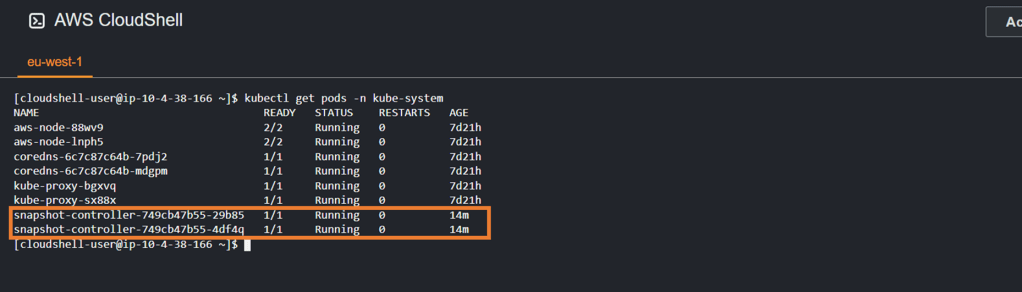
use the kubectl get pods -n kube-system command to confirm that the pull from the git repository was successful and the snapshot controllers were successfully installed and are running.
4. Deploy the EBS CSI Driver Add-On
Again we have the option to do this via the GUI, eksctl or AWS CLI. I’m going to use AWS CLI this time around. If needed, replace the variables in orange. ( Note – 111122223333 is just in place of my real account ID)
5. Confirm CSI drivers have been installed and are in running state
Run the kubectl get pods -n kube-system command again. If all is well you should see your ebs-csi controllers in a running state
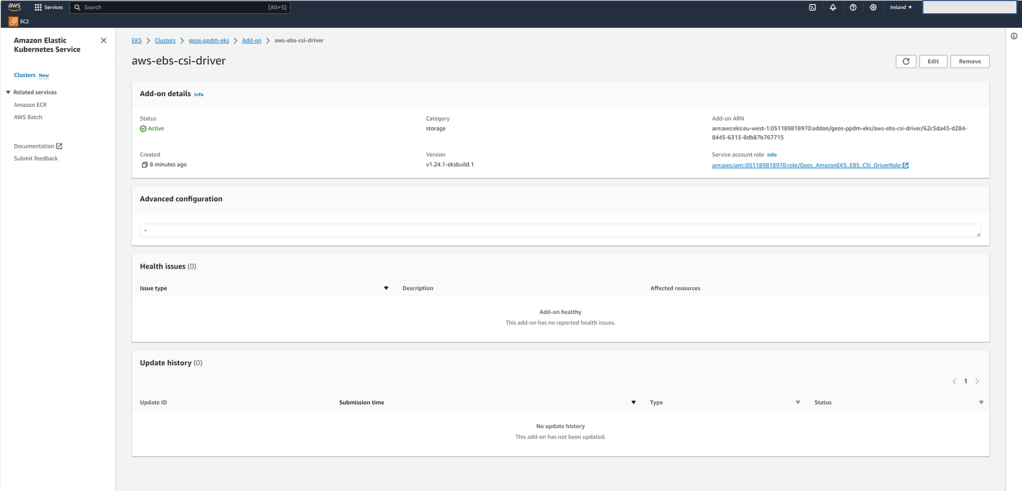
You can also leverage the GUI on the AWS console to verify all is operational and as expected.
6. Configure the Volume Snapshot Class
A Volume Snapshot is a request for a snapshot of a volume by a user, it is similar to a PersistentVolumeClaim. A VolumeSnapshotClass, allows you to specify different attributes belonging to a VolumeSnapshot. I probably don’t have to go into too much detail as to why these are so important in the realm of availability and backup/restore. We get to nice things like copying a volume’s contents at a point of time without creating an entirely new volume!! Key point here though is that snapshot functionality is only supported with CSI Drivers and not the native in-tree gp2 driver.
Create the Volume Snapshot Class YAML File. I’m deviated from the normal here, and pasting the file directly into the bash console:
All going well you should see the following output
7. Configure and deploy the default storage class
EKS defaults to using EBS storage class gp2 by default. We have a couple of issues here, namely as noted above we can’t use the snapshot capability, but more importantly PPDM does not support gp2. Therefore we need to create a new Storage Class and make this the default class. By default, the aws ebs csi driver leverages gp3, which of course is more feature rich, flexible and performant.
We now have got to the point whereby, we have a fully functional EKS environment, backed by persistent native EBS block storage. In part 3 of this series we will:
deploy a sample application ( don’t expect too much, far from a developer am I !!!. Plan is just to populate a new namespace for the purposes of a backup/restore demo).
Review what what we have already created/deployed in terms of Dell PPDM and Data Domain Virtual Edition. We have covered this extensively already in some previous posts, but we will recap.
Add our newly created EKS cluster as a Kubernetes Asset Source in Dell PPDM and complete the discovery process
Where to go for more info:
Thanks to Eli and Idan for their fantastic blogs on the subject on Dell Infohub. Infohub is a great technical resource btw.
DISCLAIMER The views expressed on this site are strictly my own and do not necessarily reflect the opinions or views of Dell Technologies. Please always check official documentation to verify technical information.
Protecting AWS EKS Container/Kubernetes workloads – Part 1 Introduction
In my last series of posts, we concentrated on setting up the backend AWS infrastructure and deploying PPDM with DDVE, both via the GUI and IAC ( Cloudformation, YAML etc.). So what next? Well we actually want to start protecting some workloads! That’s the whole reason I’m doing the blog.
Being in the cloud, what better workload to get started with than some cloud-native workloads. If like many, you are an AWS consumer, then you will most likely either using the Amazon managed Kubernetes service, Elastic Kubernetes Service (EKS), or will be considering using it in the future. To this end, I’m going to assume nothing and that we are all fresh to the topic, so we will start from the beginning, as if we are setting up a demo POC. You want to use EKS, but you have questions on how you provide a cost effective, efficient availability plan for your modern workloads. Of course that’s where Dell APEX Protection Storage (PPDM and DDVE) on AWS for EKS are a great match.
Standing up our demo AWS EKS Environment
So let’s get straight to it. The rest of this blog will step through the standup of a basic EKS environment. As per normal I have included a video demo of what we will discuss. I am going to use a mix of the command line ( ASW CLI, EKSCTL, KUBCTL) and the GUI. Of course we can execute a single EKSCTL command that will do everything in one go, but it’s nice to understand what we are actually doing under the hood.
Step1: Get your tools and documentation prepared.
I have leveraged the AWS documentation extensively here. It is clear, concise and easy to follow.
I am using AWS Cloudshell, usually I would use a Bastian host, but Cloudshell takes away much of the pain in ensuring that you have all the necessary tools installed. Find out more here:
We do need one other piece of software that isn’t included in the base Cloudshell setup. That is EKSCTL. Find out more at this link https://eksctl.io/ and installation guidance here https://eksctl.io/installation/. For convenience I have included the code here to deploy this tool on Cloudshell. Note the last line of the code snippet which moves EKSCTL to the local user BIN folder. This will make it persistent across reboot, unless of course you want to re-install every time you launch Cloudshell. I will also post on my Github
# for ARM systems, set ARCH to: `arm64`, `armv6` or `armv7`
ARCH=amd64
PLATFORM=$(uname -s)_$ARCH

curl -sLO "https://github.com/eksctl-io/eksctl/releases/latest/download/eksctl_$PLATFORM.tar.gz"

# (Optional) Verify checksum
curl -sL "https://github.com/eksctl-io/eksctl/releases/latest/download/eksctl_checksums.txt" | grep $PLATFORM | sha256sum --check

tar -xzf eksctl_$PLATFORM.tar.gz -C /tmp && rm eksctl_$PLATFORM.tar.gz

sudo mv /tmp/eksctl /usr/local/bin
Step 2 : Permissions, permissions and more permissions:
As with everything in AWS, you need to be authenticated and authorised to undertake pretty much everything. So if you aren’t the root user, make sure whoever has set you up as an IAM user has granted you enough permissions to undertake the task at hand. You can check your user identity on Cloudshell via the following command:
Step 3: Create a cluster IAM role and attach the required EKS IAM managed policy:
Kubernetes clusters managed by Amazon EKS make calls to other AWS services on your behalf to manage the resources that you use with the service. Permissions, permissions, permissions!
Create a file named geos-eks-cluster-role-trust-policy.json. I am using Notepad++ to create the file, but you could use any other editor. Add the following JSON code
Upload the file, using the ‘upload file’ feature in Cloudshell. I have shown this in the video
Cat to the file to make sure everything is ok
Create the IAM role using the following configuration. We will call the role Geos-EKSClusterRole ( Copy and Paste into the command line)
aws iam create-role \
  --role-name Geos-EKSClusterRole \
     --assume-role-policy-document file://"geos-eks-cluster-role-trust-policy.json"
Attach the managed policy to the role, again copy and paste directly into the command line
aws iam attach-role-policy \
  --policy-arn arn:aws:iam::aws:policy/AmazonEKSClusterPolicy \
  --role-name Geos-EKSClusterRole
Step 4: Deploy the EKS Control Plane using the GUI
This really is very straightforward, so just the video for guidance. For simplicity we will use defaults for everything. One thing to note is that it is a requirement to have a least two subnets spread across 2 availability Zones (AZ’s). This is to ensure EKS Kubernetes Control Plane redundancy, in the event you lose an AZ. Go grab Coffee or Tea, and come back in 15-20 minutes
Step 5: Configure kubectl to communicate with the EKS Control Plane
We now need to configure our Cloudshell to allow Kubectl talk to our newly created EKS Control Plane. Items in orange or variables, I have named my cluster geos-ppdm-eks, when i deployed via the GUI, in region eu-west-1
Step 6: Verify you can reach the Kubernetes EKS Control Plane
Using the kubectl get svc command you should be able to see the kubernetes cluster IP
[cloudshell-user@ip-10-2-2-8 ~]$ kubectl get svc

NAME         TYPE        CLUSTER-IP   EXTERNAL-IP   PORT(S)   AGE
kubernetes   ClusterIP   10.100.0.1   <none>        443/TCP   23m

[cloudshell-user@ip-10-2-2-8 ~]$
Step 7: Create an EC2 Instance IAM role and attach the required EC2 IAM managed policy:
Before we deploy our worker nodes, like we did with the EKS control plane, create an IAM role and attach an AWS managed IAM policy to it, to allow the EC2 instances to execute tasks on behalf of the control plane. the process is exactly the same
Create a file named geos-node-role-trust-policy.json using your editor of choice. The file should contain the following Json code. Upload to Cloudshell using the upload file feature, as shown in the video. Do a quick CAT to make sure that everything looks as it should.
Create the IAM role, by pasting the following into Cloudshell
aws iam create-role \
  --role-name GeosEKSNodeRole \
  --assume-role-policy-document file://"geos-node-role-trust-policy.json"
Attach the AWS Managed policies to the newly created role:
aws iam attach-role-policy \
  --policy-arn arn:aws:iam::aws:policy/AmazonEKSWorkerNodePolicy \
  --role-name GeosEKSNodeRole
aws iam attach-role-policy \
  --policy-arn arn:aws:iam::aws:policy/AmazonEC2ContainerRegistryReadOnly \
  --role-name GeosEKSNodeRole
aws iam attach-role-policy \
  --policy-arn arn:aws:iam::aws:policy/AmazonEKS_CNI_Policy \
  --role-name GeosEKSNodeRole
Step 8: Deploy the worker nodes on EC2
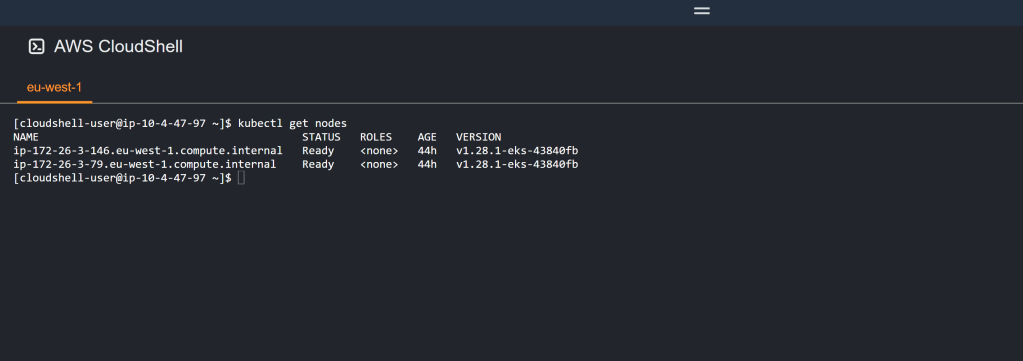
For this part we will again use the GUI. Follow the video demo, and choose the defaults. There are options to scale down the minimum amount of node active at one time and the the size/type of EC2 instance if you so wish. This process will take some time, so more tea/coffee is so required. once done execute the ‘kubectl get nodes’ following command in Cloudshell. If all is well you should see the following and we are in great shape.
Video Demo:
As mentioned rather than overbearing everybody with screenshots, I have run through the above process via video, using the same variables etc. So everything hopefully should be in context.
Coming Next:
Up next we will enable our cluster to work properly with Dell APEX PPDM. This involves installing som snapshotter updates and persistent container storage for AWS EBS storage. Stay tuned!
DISCLAIMER The views expressed on this site are strictly my own and do not necessarily reflect the opinions or views of Dell Technologies. Please always check official documentation to verify technical information.
Extended IAC YAML Script – Adds everything else to the recipe.
Short post this week.
My last blog post leveraged AWS CloudFormation and a YAML script to stand up the basic architecture required to deploy DDVE and PPDM in an AWS VPC. Link to post can be found here. As promised though, I have added a little bit more in order to make the process that bit easier when it comes to running through the DDVE/PPDM deployment process (More on that in upcoming future posts!)
The extended script can be found on Github. Please feel free to reuse, edit, plagiarise, or indeed provide some candid feedback (always welcome).
What this script adds.
Windows 2016 Bastion Host on T2.Micro Free Tier instance.
Security Group attached to Bastion host to allow RDP only from Internet
DDVE Security Group configured (will use when we deploy DDVE)
IAM Role and Policy configured to control DDVE access to S3 Bucket ( we will use when we deploy DDVE)
Outputs generated to include:
Public IP address for bastion host
Security Group name for DDVE
IAM Role ID
S3 Bucket Name
So all the base work has now been done, the next set of posts will get down to work in terms of deploying and configuring DDVE and PPDM. Stay tuned!
DISCLAIMER The views expressed on this site are strictly my own and do not necessarily reflect the opinions or views of Dell Technologies. Please always check official documentation to verify technical information.
YAML Cloudformation Script for standing up the base AWS VPC architecture:
My last set of blogs concentrated around running through best practices and standing up the AWS infrastructure, so as to get to the point whereby we deployed DDVE in a private subnet, it was protected by a Security group, accessible via a Bastion host and the data path between it and its back end datastore was routed via an S3 VPC endpoint. Of course we leveraged the nicely packaged Dell Cloudformation YAML file to execute the Day 0 standup of DDVE.
Of course it would be great if we could leverage CloudFormation to automate the entire process, including the infrastructure setup. For a number of reasons:
It’s just easier and repeatable etc, and we all love Infrastructure as Code (IAC).
Some people just want to fast-forward to the exciting stuff… configuring DDVE, attaching PPDM etc. They don’t necessarily want to gets stuck in the weeds on the security and networking side of things.
It makes the process of spinning up a POC or Demo so much easier.
Personally of course, I clearly have a preference for the security and network stuff, and I would happily stay in the weeds all day….. but I get it, we all have to move on….. So with that in mind……
What this template deploys:
After executing the script (I will show how in the video at the end), you will end up with the following:
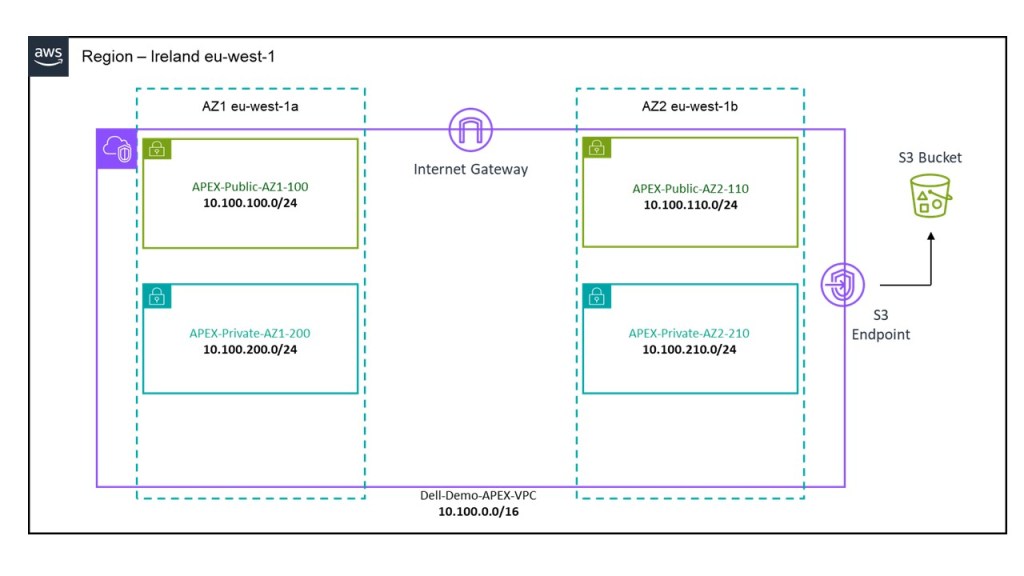
A VPC deployed in Region EU-West-1.
1 X Private Subnet and 1 X Public Subnet deployed in AZ1.
1 X Private Subnet and 1 X Public Subnet deployed in AZ2.
Dedicated routing table attached to private subnets.
Dedicated routing table attached to public subnets with a default route pointing to an Internet Gateway.
An Internet Gateway associated to the VPC to allow external access.
An S3 bucket, with a user input field to allocate a globally unique bucket name. This will be deployed in the same region that the CloudFormation template is executed in. Caution, choose the name wisely, if it isn’t unique the script will most likely fail.
VPC S3 Endpoint to allow DDVE traffic from a private subnet reach the public interface of the S3 bucket.
Preconfigured subnet CIDR and address space as per the diagram below. This can be changed by editing the script itself of course, or I could have added some variable inputs to allow do this, but I wanted to keep this as simple as possible.
Where to find the template:
The YAML file is probably a little too long to embed here, so I have uploaded to GitHub at the following link:
There a couple of ways to do this and we can execute directly form the CLI. In most instances though it may be just as easy to run it directly from the Cloudformation GUI. In the next post we will automate the deployment of the Bastion host, Security Groups etc. At that point we will demo how to run the CloudFormation IAC code direct from CLI.
Next up part 2, where we will automate the standup of a bastion host and associated security groups.
DISCLAIMER The views expressed on this site are strictly my own and do not necessarily reflect the opinions or views of Dell Technologies. Please always check official documentation to verify technical information.
Part 4: Automated Infrastructure as Code with AWS CloudFormation
The last in this series of blog posts. I’ll keep the written piece brief, given that the video is 24 minutes long. It passes quickly I promise! The original intent of this series was to examine how we build the security building blocks for a APEX Protection Storage DDVE deployment. Of course as it tuns out, at the end we get the bonus of actually automating the deployment of DDVE on AWS using Cloudformation
Here we deep-dived into the the S3 Object store configuration, plus we created the AWS IAM policy and role which is used to allow DDVE securely access the S3 bucket, based on explicit permission based criteria.
In this post, we explored in depth the use of the AWS S3 endpoint feature, which allows us to securely deploy DDVE in a private subnet, yet allow it access to a publicly exposed service such as S3, without the need to traverse the public internet.
We examined the most fundamental component of network security in AWS, Security Groups. These control how traffic is allowed in and out of our EC2 instances and by default controlling the traffic that is allowed between instances. DDVE of course is deployed on EC2
What Next….
This post Part 4…will
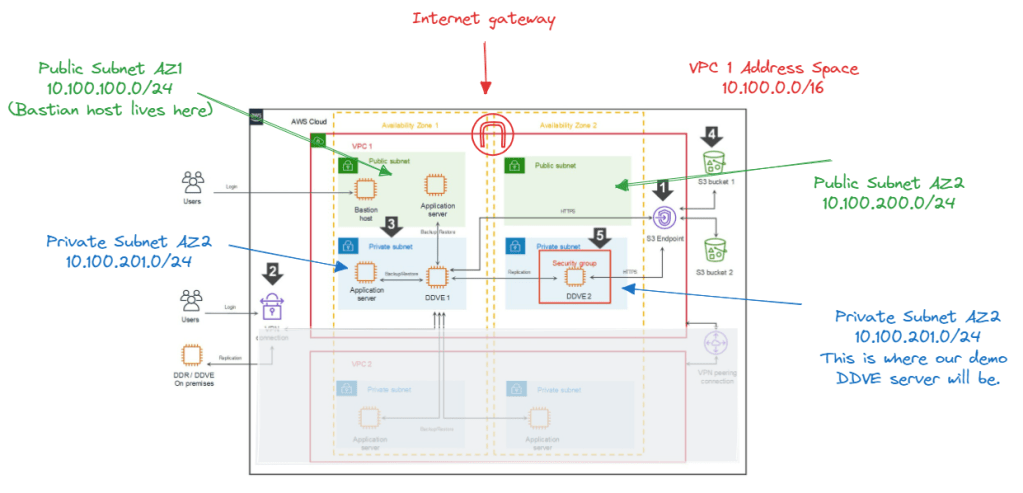
Configure the VPC basic networking for the demo, including multiple AZ’s, public/private subnets and an Internet Gateway. So we will look something like the following: Note I greyed out the second VPC at the bottom diagram. Hold tough ! This is for another day. In the video we will concentrate on VPC1 (AZ1 and AZ2). Our DDVE appliance will be deployed in private subnet in VPC1/AZ2. Our Bastion host will be in the public subnet in VPC1/AZ1
Deploy and configure a windows based Bastian or Jump host, so that we can manage our private environment from the outside.
Configure and deploy the following:
S3 Object store
IAM Policy and Role for DDVE access to the S3 policy store
S3 Endpoint to allow access to S3 from a private subnet
The installation will be done using the native AWS Infrastructure as Code offering, Cloudformation
Anyway, as promised, less writing, more demo! Hopefully, the video will paint the picture. If you get stuck, then the other earlier posts should help in terms of more detail.
Up Next…
So that was the last in this particular series. We have got the point where we have DDVE spun up. Next up, we look at making things a bit real….by putting Apex Protection Storage to work.
DISCLAIMER The views expressed on this site are strictly my own and do not necessarily reflect the opinions or views of Dell Technologies. Please always check official documentation to verify technical information.
In Part 1 and Part 2 of this series we concentrated on the relationship between the DDVE software running on EC2 and its target datastore, S3. As with anything cloud based permissions and IAM play a critical role and then we delved into the techniques used to securely connect to S3 from a private subnet.
But what about some of the more traditional elements to infrastructure security within the environment? How do we firewall our critical assets at Layer 3 and Layer 4 (IP and Port level). The nuts and bolts, the first layer of defense.
Referring back to our original diagram again, we can see that we use a Security Group to provide that protection to the EC2 instance itself, to allow only the traffic necessary ingress/egress the DDVE appliance.
What are Security Groups?
Security Groups are possibly the most fundamental component of network security in AWS, controlling how traffic is allowed into or out of your EC2 instances, and by default controlling the traffic that is allowed between instances. They are stateful (more on that in a minute) and applied in both an inbound and outbound direction. In the spirit of blogging, let’s try and run through this with an example, focused on the DDVE Security Group configuration. We will implement this example in the video demo at the end of this post.
The above diagram is an excerpt of the Security Group we will create and attach to our EC2 instance. For clarity I have just included a couple of rules. In the video we will configure all of the required rules as per the Dell Technologies best practice ( disclaimer: as always though please refer to the latest documentation for the most up to date guidance). Anyway, the purpose here is to demonstrate how this actual works and how we apply the rules. Ports and IP addresses will always invariably change.
In the above we have our EC2 Instance that has a Security Group attached. We have two rule sets as standard:
The Inbound ruleset is configured to allow traffic from our Bastian server over SSH (22) and HTTPS(443) to communicate with DDVE. We have also explicitly defined the source port of the Bastian host. We will need HTTPS access from the Bastian host in order to configure the GUI
The Outbound ruleset is configured to allow traffic from our DDVE instance to communicate to our S3 bucket via REST API HTTPS(443). Note I have included the destination as the prefix list, that was created when we configured the S3 endpoint in the last post. Technically we could open up all HTTPS outbound traffic, but we should where possible be restrictive as possible based on the principle of least privilege.
A couple of points to note here:
Security Groups are Stateful. If you send a request from your instance, that is allowed by the Outbound ruleset, the response for that request is allowed by default, regardless of the Inbound ruleset, and vice versa. In the above example when the Bastian host initiates a HTTPS session over 443, then the return traffic will be via an ephemeral random port (32768 and above). There is no need to configure a rule allowing this traffic outbound.
Security Groups are always permissive with an implicit deny at the end. You can’t create rules that deny access. We can do this using another security tool, Access Control Lists
Nested References. We can refer to other security groups as a security group source. We haven’t used this here, but it is especially useful if we want to avoid the creation of multiple rules, that make the configuration unwieldy.
Can be attached to multiple instances. This is especially handy if I have multiple EC2 instances that require the same security treatment
Security groups are at VPC level. They are local only to the VPC they were configured
Not processed by EC2 instance or ENI. The Security Group rules are processed outside the EC2 instance in AWS. This is clearly important to prevent flooding or DoS attacks based on load. If traffic is denied, the EC2 instance will never see the traffic.
Default Behavior. If you create a new security group and don’t add any rules then all inbound traffic is blocked by default and all outbound is allowed. I’ve been caught by this once or twice.
What about Network Access Control Lists (NACLS)?
So we aren’t going to use these in the video demo, but it is good to understand how they differ from and sometimes complement Security Groups.
The principle difference is that SG’s allow specific inbound and outbound traffic at the resource level, such as the EC2 instance. Network access control lists (NACLs), on the other hare applied at the subnet level. ACL’s allow you to create explicit deny rules and are stateless, versus SG’s which only allow permit rules and are stateful.
Using our previous example, what would happen if we tried to use an ACL instead of a Security Group to permit traffic from the Bastian server to the DDVE EC2 instance over Port 443 (HTTPS)? Because the ACL has no concept of ‘State’, it does not realise that the return traffic is in response to a request from the Bastian server. It can’t knit the the ‘state’ of the flow together. The result now of course is that we would need to create another ACL to permit the outbound traffic based on the high order ephemeral port range we discussed earlier. As you can imagine, this will get very complex, very quickly, if we have to write multiple outbound/inbound ACL rules to compensate for the lack of statefullness.
However…. remember SG’s have there own limitation. We cannot write deny rules. With ACL’s we can and this can be done at the subnet level. Which gives us the power to filter/block traffic at a very granular level. Using our example, consider a scenario whereby we notice a suspicious IP address sending over port 443 to our Bastian server (remember this is on a public subnet). Say this address is coming from source 5.5.5.5. With ACL’s we can write a simple deny rule at the subnet level to deny traffic from this source, yet till allow everything else configured with our security group.
Security Group Rule Configuration for AWS
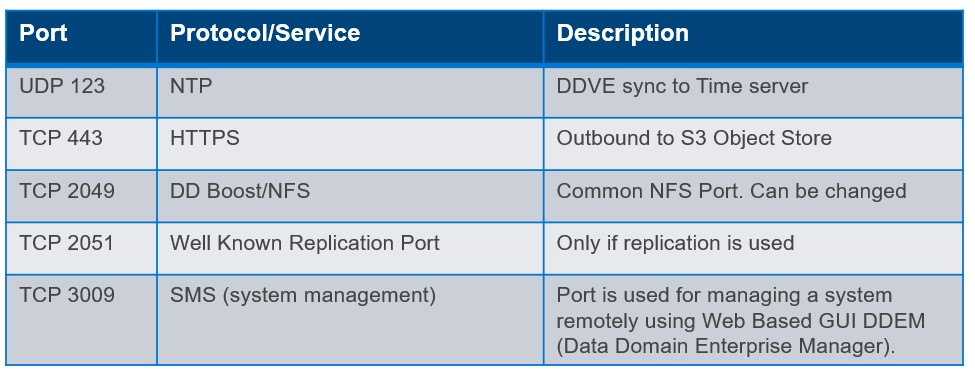
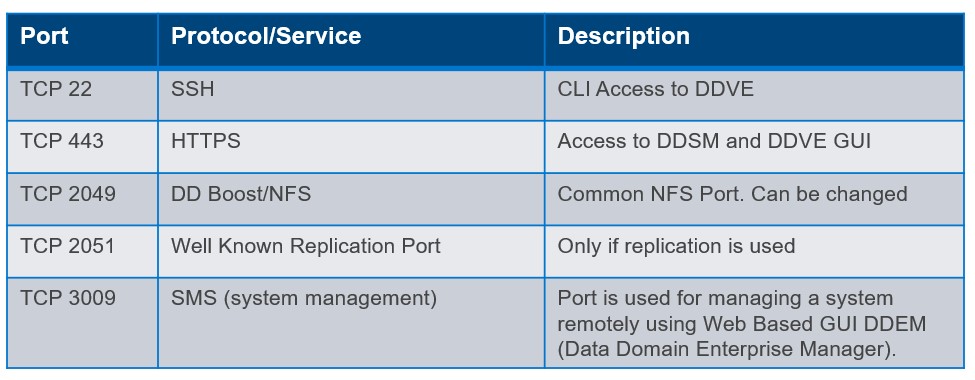
So earlier in this post we identified a couple rules that we need for S3 access outbound, SSH/HTTPS access inbound etc. In the following video example we will configure some more to enable other common protocol interactions such as DD Boost/NFS, Replication, System Management etc. Of course, the usual caveat applies here, please refer to official Dell Technologies Product Documentation ( I’ll post a few links at the bottom of the post), for the most up to date best practice and guidance. The purpose of this post is to examine the ‘why’ and the ‘how’, the specific ‘what’ is always subject to change !
Outbound Sample Ruleset
Inbound Sample Ruleset
Video Demo
Short and sweet this time, we will dive straight into creating a Security Group with the inbound/outbound ruleset as defined above. In the next post, we will do a longer video, from which we will go through the complete process from start to finish. VPC setup, IAM configuration, S3 Endpoint standup, Security Group configuration all brought together using Infrastructure as Code (IAC) and CloudFormation!
Quick Links
As promised a couple of handy references. Note: You may need Dell customer/partner privilege to access some content . Next up the full process end to end……
DISCLAIMER The views expressed on this site are strictly my own and do not necessarily reflect the opinions or views of Dell Technologies. Please always check official documentation to verify technical information.
Private connectivity from DDVE to S3 leveraging VPC S3 Endpoints.
Where we are at ?
In Part 1 we talked about securing the relationship between the DDVE instance and the target S3 instance. This was a permissions based approach leveraging the very powerful native IAM features and key management capabilities of AWS. A very Zero-Trust approach, truth being told… always authenticate every API call, no implicit trust etc.
We have a little problem though, our IAM stuff won’t work yet, but the reason is by design. Referring back to our original diagram ( Forgive the rather crude mark up – but it serves a purpose). Before we do that, just a brief word on the format of this series. The first few will introduce concepts such as IAM, VPC endpoints, Security Groups etc. The last in the series, will tie everything together and we will run through a full deployment, leveraging CloudFormation. First things first however!
Public versus Private Subnets
The DDVE appliance is considered a back-end server. It should never be exposed directly to the internet, hence that is why it sits in a ‘Private Subnet’, as per the diagram. A private subnet is one that is internal to the VPC and has no logical route in or out of the environment. At most it can see all the other internal devices within its local VPC. The purpose of course is that this minimises the attack surface by not exposing these devices to the internet.
Of course we have the concept of a ‘Public Subnet’ also. Referring to the diagram you can see our ‘Bastion host’ (fancy name for a jump box), sitting in the public subnet. As its name implies, it is facing the public or internet. There are various ways we can achieve this leveraging IGW, NAT etc., that we won’t delve into here. Suffice to say our ‘Bastion Host’ can reach the internet and devices private to the VPC.
The above is somewhat simplistic, in that we can get much more granular in terms of reachability leveraging Security Groups and Access Control Lists (ACLs). You will see how we further lock down the attack surface of the DDVE appliance in the next post leveraging Security Groups. For now, we have enough to progress with the video example below.
So what’s the problem?
S3 is a publicly accessible, region based AWS offering. It is accessed via what is called a ‘Public Service Endpoint’. To reach this endpoint an EC2 device must have access to this ‘Public Service Endpoint’, external to its VPC. By definition Private Subnets have no way out of their VPC so S3 access will fail.
Possible Solutions
Move the DDVE EC2 instance to the Public VPC.
I’ve included this as a possible option, clearly we won’t do this. Bad idea!
Leverage a NAT gateway deployed in the Public Subnet.
This is a valid option in that the private address is ‘obscured’ by the NAT translation process. It’s IP address still remains private and not visible externally.
Traffic from the private subnet would be routed towards the NAT device residing in the Public subnet
Once in the public subnet, then it can reach the S3 Public Service Endpoint via a route through the VPC Internet Gateway (IGW).
It is important to note here that even though traffic destined for S3 Public Service Endpoint, traverses the Internet Gateway, it does not leave the AWS network. So there is no security implication in this regard.
Considerations around using NAT
So yes we have a solution… well kind of. You have two NAT options
NAT Instance: Where you manage your own EC2 instance to host the NAT software. Technically you aren’t paying anything for the NAT service from AWS, but this is going to be complicated in terms of configuration, performance and lifecycle management. Even so, dependent on the throughput you require, you may need a beefy EC2 instance. This of course will be billed.
AWS NAT Gateway. An AWS managed service, so complications around performance, configuration, and lifecycle management are offloaded to AWS. of course the issue now becomes cost. You will be charged for the privilege. The cost structure is based on throughput, processing and egress, so if you are shifting a lot of data, as you may well be, then the monthly cost may come as a bit of a surprise. Scalability shouldn’t be too much of a concern, a gateway can scale to 100Gbps, but who knows!
A Better Solution: Leveraging VPC Gateway Endpoints (A.K.A S3 Endpoint)
Thankfully, the requirement for private subnet connectivity to regional pan AWS services is well known use case. AWS have a solution called Gateway Endpoints, to allow internally routed access to services such as S3 and DynamoDB. Once deployed, traffic from your VPC to Amazon S3 or DynamoDB is routed to the gateway endpoint.
The process is really very straightforward and is essentially just a logical routing construct managed by AWS directly. When a Gateway endpoint is stood up, a route to the S3 service endpoint ( defined by a prefix list), via the assigned gateway, is inserted in the Private subnets routing table. We will see this in more detail via the video example. Suffice to say the construct has many other powerful security features baked in leveraging IAM etc., that we will discuss during a later post. In summary:
Endpoints allow you to connect to AWS services such as S3 using a Private network instead of the Public network. No need for IGW’s, NAT Gateways, NAT instances etc., Plus they are free!
Endpoint devices are logical entities that scale horizontally, are highly redundant/available and add no additional bandwidth overhead to your environment. No need to worry about Firewall throughput or packet per second processing rates.
There are two types of endpoints. The first we have discussed here, the Endpoint Gateway. The second, the Interface Endpoint which leverages PrivateLink and ENI’s, and for which there is charge. These are architected differently but add more functionality in terms of inter region/inter VPC connectivity etc. In most, if not all cases for DDVE to S3, the Endpoint Gateway will suffice.
Video Demo
In the video demo we will follow on from the last post.
VPC setup is already in place, including private and public subnets, internet gateways, S3 bucket and the S3 IAM policy we created in the previous post.
We will deploy a bastion host as per the diagram, apply the IAM policy and test connectivity to our S3 bucket. All going well this will work.
We will then deploy an EC2 instance to mirror the DDVE appliance in the private subnet, apply the same IAM policy and test connectivity to the same S3 bucket. This will of course fail as we have no connectivity to the service endpoint.
Finally we will deploy a VPC Endpoint Gateway for S3 and retest connectivity. Fingers crossed all should work!
Next Steps
The next post in the series will examine how we lock down the surface attack area of the DDVE appliance even further using Security Groups.
DISCLAIMER The views expressed on this site are strictly my own and do not necessarily reflect the opinions or views of Dell Technologies. Please always check official documentation to verify technical information.
























 Cablestoclouds.blog